Checkout
The Ingram Micro website offers several checkout features:
- Shipping and billing addresses
- Carrier & Shipping Information
- PO numbers for purchasing and distributing to customers
- Carrier and shipping methods with estimated transit times
- Payment methods (default from My Profile settings or use manual entry)
This page describes how to use these features to check out and create an order.
Check Out with a Cart
Complete checkout from the active cart to create a new order.
1. Click the  Cart icon to go to the active cart and complete these tasks:
Note: When viewing the active cart, you can click SWITCH CART to check out with a different cart.
Begin Checkout
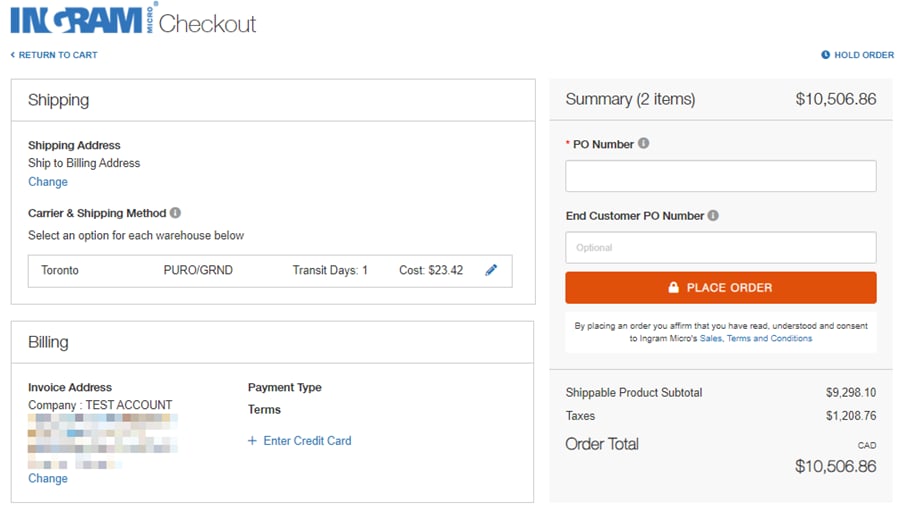
2. Click CHECKOUT. The Checkout screen presents order details and multiple editing options.
Shipping
3. Set shipping information. Click Change to edit.
- The Shipping Address Book provides available shipping information.
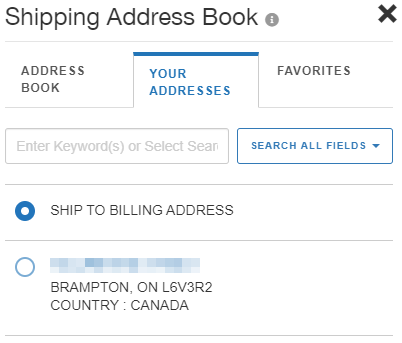
- The Shipping Address Book has these features:
- ADDRESS BOOK: Show all shipping addresses in the address book. Add a new address if required.
- YOUR ADDRESSES: Choose the address for this order.
- FAVORITES: Display any favorite addresses and select one as the shipping address, if applicable.
- SEARCH ALL FIELDS: Locate an address with a postal code, street name or other search string.
Billing & Payment
You can set up and maintain three payment types for your account:
- Terms: Existing credit limit with Ingram Micro
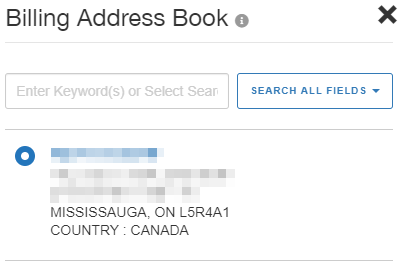
5. Set the billing information. Select the billing address or click Change to edit. The Billing Address Book provides available billing information.
Contact Information & Notes
7. Set Other Options for this order, to include contact information and notes.
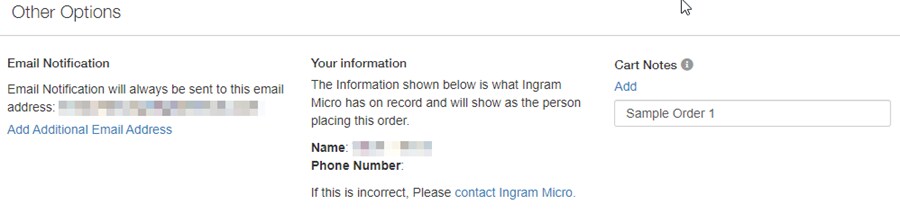
- Make sure Email Notification contains one or more valid email contacts.
- Verify all contact information is accurate.
- Add Cart Notes as helpful to you for tracking or processing the order. Please do not include messages to Ingram Micro in this field.
PO Numbers
8. Set Summary purchase order information.
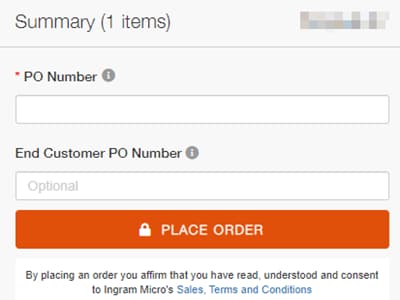
- PO Number: Enter the reseller purchase order number. The PO number (or reference number) allows you to track this order. It will be printed on the order documents.
- End Customer PO Number: Allows your customers to identify the order. It will be printed on the shipping documents.
Complete Checkout
9. Click Place Order.
The new order is now viewable on the Orders page.
For more information, refer to the Orders & Invoices section.
 Return to Top