Quick Order Entry
Quick order entry makes it easy to create one or multiple orders:
- Quick order entry is a way to create an order when you know the SKU or VPN for the product you wish to order.
- In addition, you can upload a spreadsheet to add multiple products to the cart in one operation.
This page contains two topics:
Use Quick Order Entry
Use Quick Order Entry to add products to your order by SKU or VPN. You can upload products to this order with a spreadsheet.
1. Go to Quick Order Entry. You have 2 options:
a. Click the  My Account icon > Quick Order Entry.
b. Click the  Cart icon > Quick Order Entry.

2. On the Quick Order Entry page, use the Quick Entry tab to add products by SKU or VPN. Include quantity. Use Add new row for more line items.
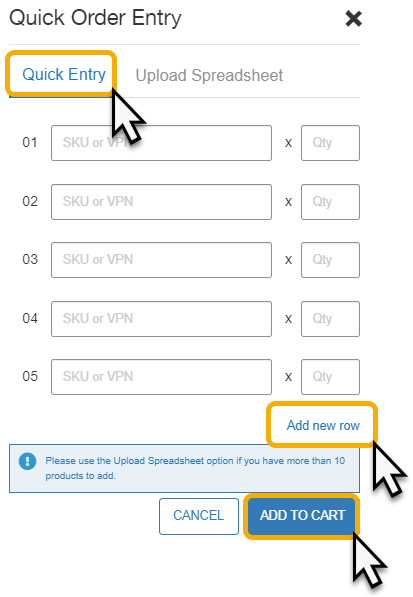
Click ADD TO CART when you finish adding products on this page.
3. On the Quick Order Entry page, use Upload Spreadsheet to add products from a file.
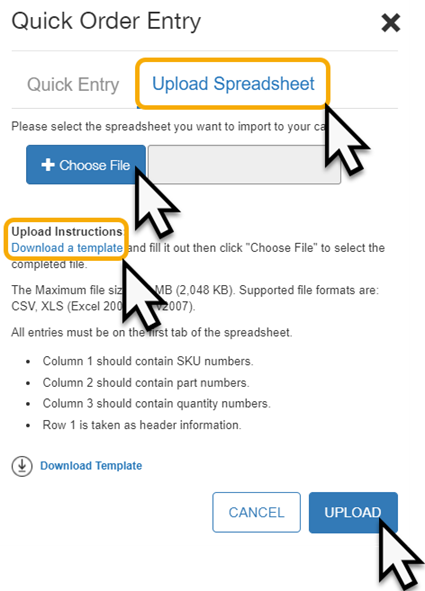
Complete the Upload Instructions on this page.
- Use Download Template for a startup spreadsheet.
- When you are ready to upload:
- Click CHOOSE FILE and browse to the local file.
- Click UPLOAD. These products are added to the active cart.
4. Click Save to add these products to the active cart.
Note: Quick Order Entry does not remove existing products from the cart, but adds them to products already in the cart.
5. Finish the cart and proceed to checkout. Refer to Checkout.
Frequently Asked Questions
What if I try to import items to my cart or quote from a spreadsheet but the import is unsuccessful?
An error message will show and cite the reason(s) the import failed.
- The import will fail if the spreadsheet is in the wrong file type, is larger than 2 MB, or contains more than 100 line items.
- Invalid entries, invalid quantities, unavailable SKU/VPNs, and disallowed items will also prevent the spreadsheet from importing successfully.
- If one or more VPNs matched multiple products, you will be prompted to select a SKU number for each multiple-match entry.
- Once you have corrected all errors, resubmit the entire spreadsheet.
Can I import items to my carts or quote from a spreadsheet?
Yes, you can import up to 100 items from an Excel or CSV spreadsheet:
- Go to the Cart Details or Quote Details page.
- Click Import from Spreadsheet.
- Click Browse and select the spreadsheet, then click Import.
Both Ingram and non-Ingram items can be imported to a quote, but only Ingram items can be imported to a basket.
How should I format the spreadsheet that is used to import items to my basket or quote?
To prepare a spreadsheet for upload to the Ingram Micro basket or quote:
1. Click Download a Template on the Cart Details or Quote Details screen to view how the spreadsheet should be formatted.
2. For quotes, non-Ingram items should also contain an item description and unit price.
 Return to Top