Administrator & User Accounts
This page describes how to set up or edit the administrator and user accounts:
Set Account Administrator Information
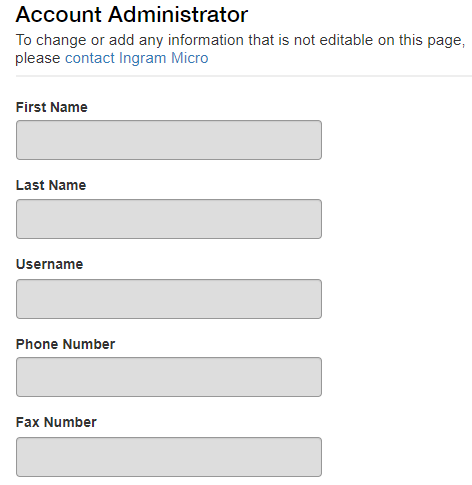
If you are the administrator for your company’s Ingram Micro account, you can enter or edit administrator account settings with these steps:
1. Click  My Account icon > My Profile > Account Administrator in the navigation panel.
To change information on the Account Administrator screen, contact Ingram Micro.
Add a New User
Ingram Micro encourages you to create accounts for all individuals accessing this website.The administrator for your Ingram Micro account can create new users, and adjust settings for any user.
1. Go to My Account icon > User Administration > ADD NEW USER.
2. In the Add New User screen, provide User Information.

Provide Permission settings and save changes.
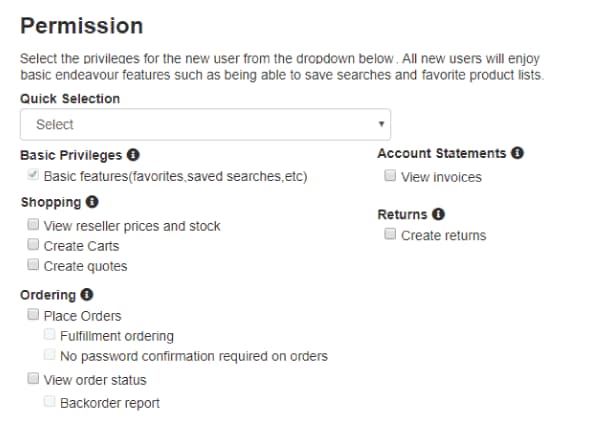
User Permission settings include:
- Quick Selection: Select one of these options to auto-populate all other settings on this page for this user:
- Basics: These settings include favourite products, shopping, saved searches, and carts.
- Support: This setting enables features such as view order status, view invoices and create returns.
- Purchasing: This setting includes all basic user functions, and adds ability to place orders and view order status.
- All: This setting enables all activities for the new user.
- Reset: Use this setting to clear fields for the user you are creating and to start again with basic privileges.
- Basic Privileges: These privileges include favourite products, shopping, saved searches, and carts.
- Shopping: The user can view product prices, inventory, create carts and quotes.
- Ordering: These privileges include cart checkout and order creation, ability to view order status, backorder reports, and additional order-related privileges.
- Account Statements: The user can view invoices, invoice reporting tools, and financial information.
- Returns: The user can create requests for returns.
 Return to Top
Edit a User Account
Use these steps to configure an existing user account:
1. Go to  My Account icon > User Administration.
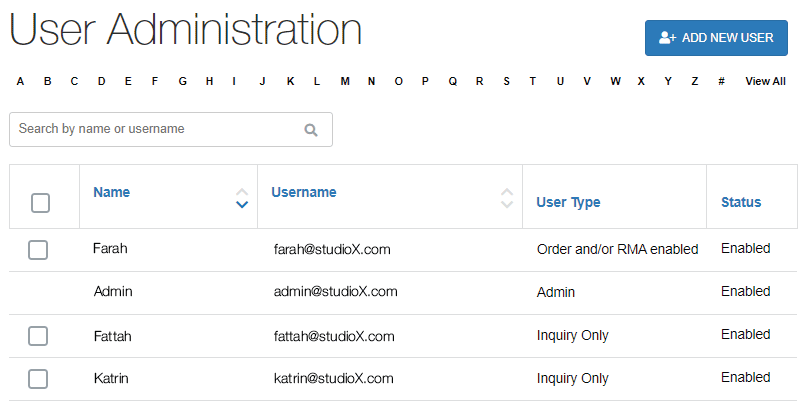
The User Administration screen shows users that you have permission to view, edit, lock, or delete.
Refer to Add a new user for information about user settings.
2. Click Reset Password to create a new password for this user. The user receives email notification with a temporary password.
3. Click UPDATE to save changes in user settings.
Return to Top
Frequently Asked Questions
How can I find out who my account administrator is?
Go to My Account icon > My Profile > Account Administrator
Can administrators create users?
You can create subordinate users if you are the account administrator. Account administrators can enable or disable users, retrieve or reset user IDs and passwords, and set other user privileges.
Can administrators assign different privileges to users?
Yes. To adjust privileges:
1. Go to My Account icon > User Administration and choose an existing user.
2. Adjust that user’s privileges by enabling or disabling options with the checkboxes. Save the changes.
Return to Top